
Edit panel programs from Home Assistant
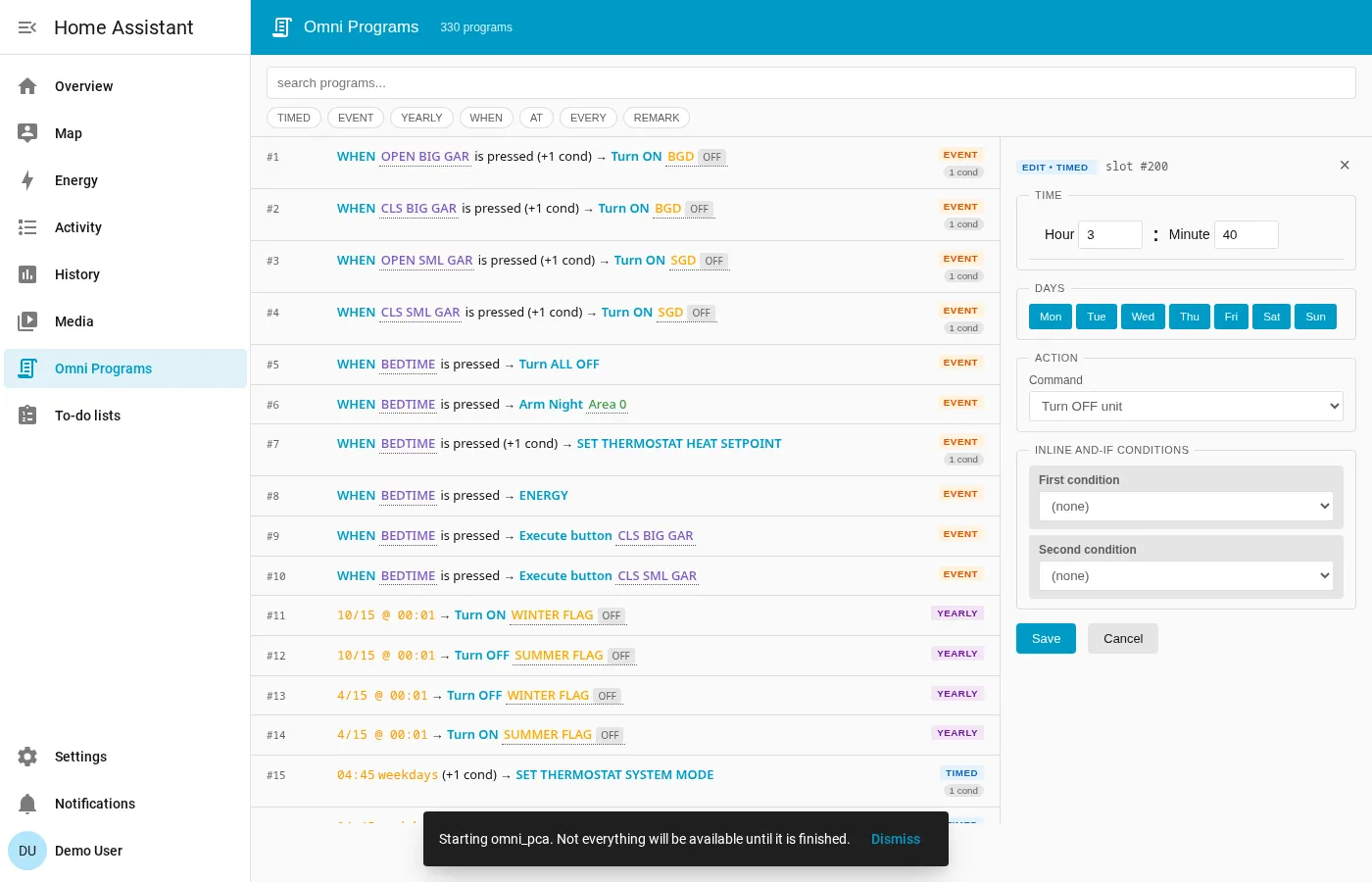
The integration registers a side-panel item called Omni Programs that lets you view and edit the panel’s built-in automation programs without opening PC Access. These are the panel-side programs that run on the Omni controller itself (so they survive HA outages), as opposed to HA automations which run inside HA.
Open Home Assistant in your browser. Omni Programs appears in the left sidebar alongside Overview, Map, Energy, etc.
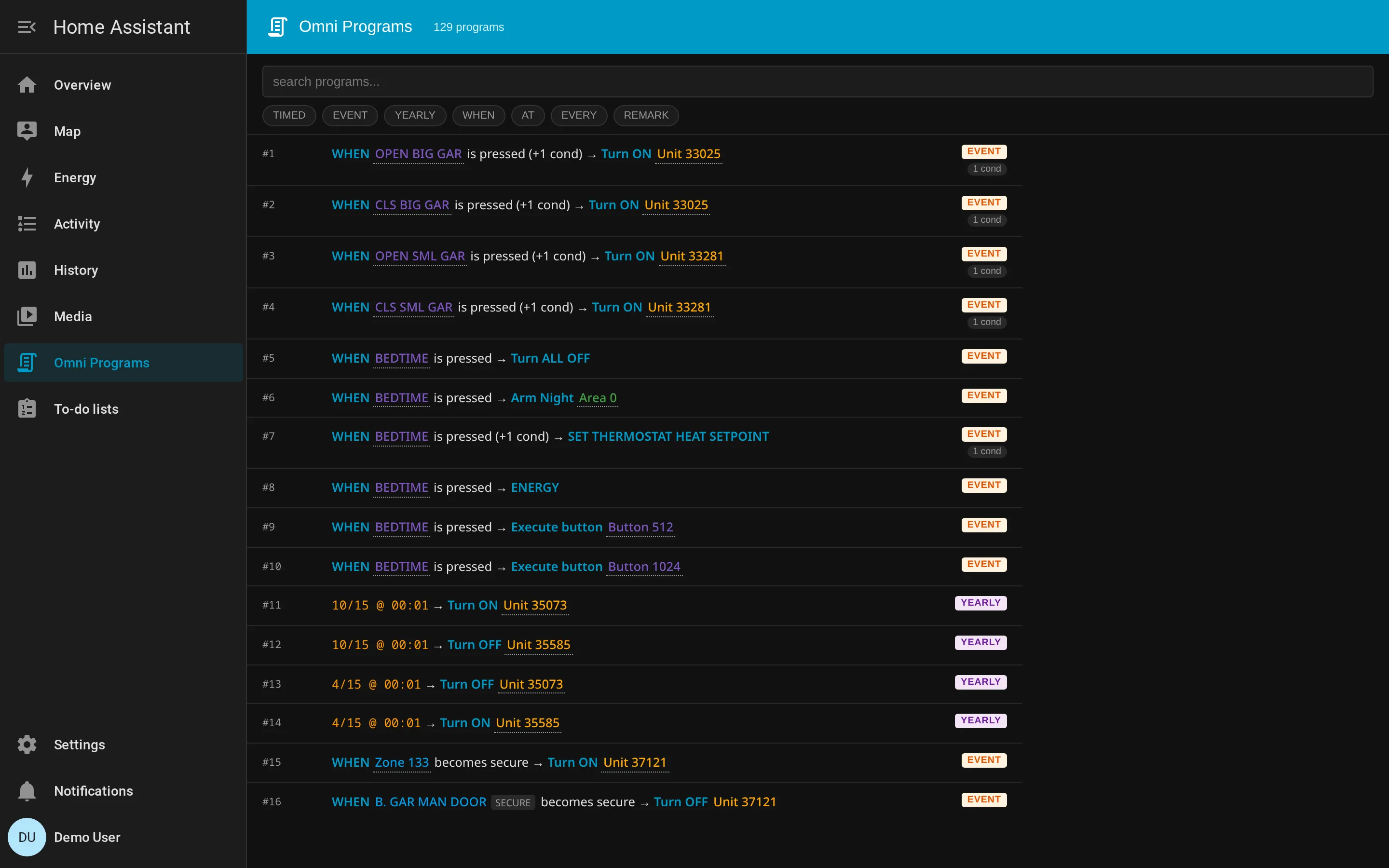
Browsing & filtering
Section titled “Browsing & filtering”The header shows the total program count (330 programs on the panel
this screenshot was taken against). Each row is one program — for
multi-record clausal chains the row shows the head slot and
collapses the chain into a single summary line.
- Search — typing into the search box filters by any visible text in the summary (program names, object names, command labels).
- Trigger-type chips —
TIMED/EVENT/YEARLY/WHEN/AT/EVERY/REMARK. Click to toggle each filter; combinations are OR’d. The right-edge badge on each row tells you the trigger type and condition count. - References filter — programs referencing a specific object (zone, unit, area, button, thermostat) can be filtered from the HA entity page: open any zone/unit/etc. entity, scroll to Related, and click the program count to jump into the side panel pre-filtered to that object.
The list updates in real time as the panel pushes program changes — no manual refresh needed.
The detail panel
Section titled “The detail panel”Click any row to open the detail panel on the right.
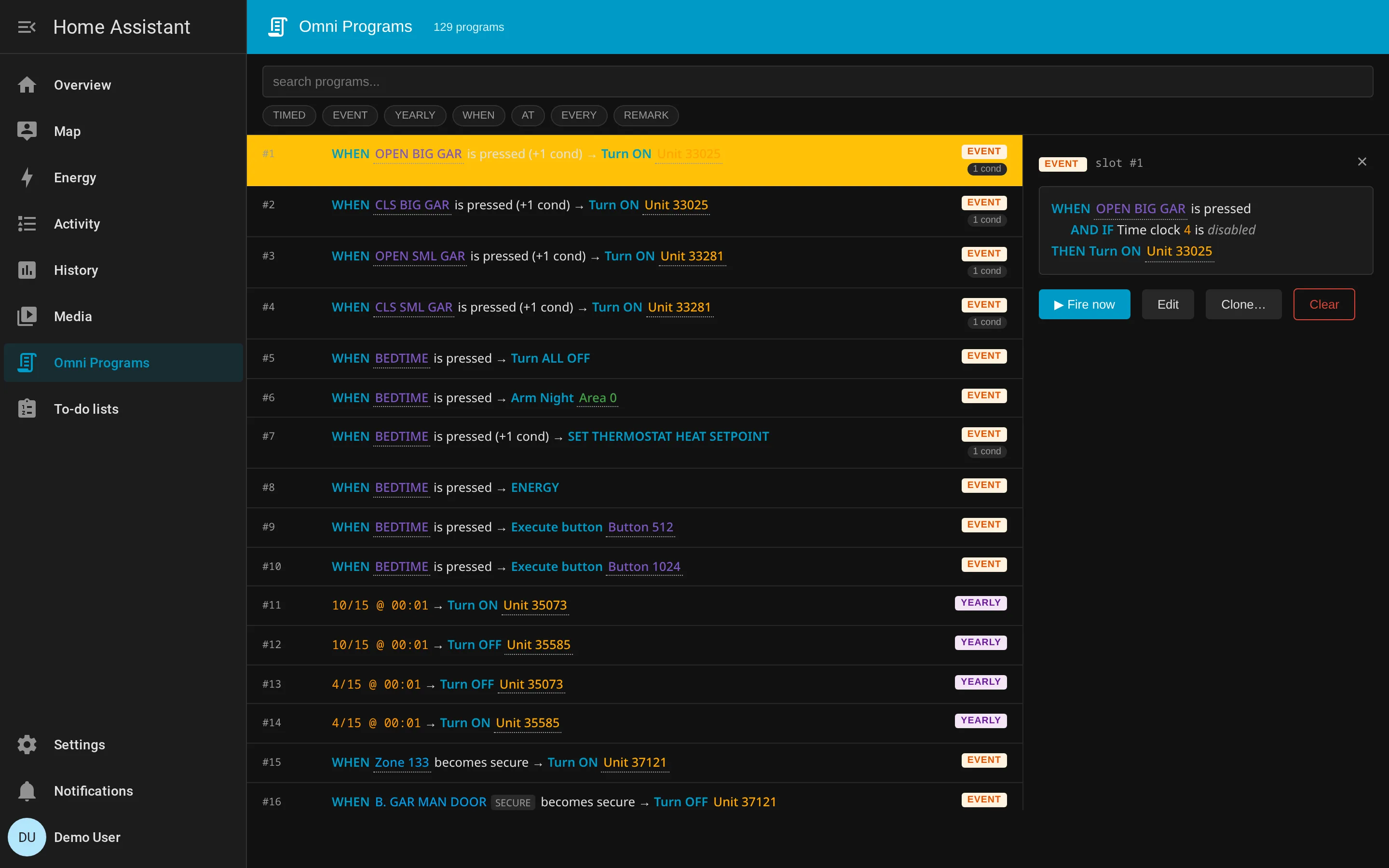
The structured-English breakdown is the same renderer that produces the row summary, but expanded — one clause per line, conditions in context.
Four actions:
- Fire now — executes the program’s THEN action immediately, bypassing any conditions or schedule. Equivalent to PC Access’s “Test” button.
- Edit — opens the inline editor (see below).
- Clone… — duplicates the program into a different slot. Prompts for the target slot number; refuses to overwrite a non-empty slot.
- Clear — wipes the slot to all zeros (
FREE). Confirmation required; this is sent to the panel asDownloadProgramwith a zero body, matching PC Access’s “Delete” behaviour.
Editing a compact-form program
Section titled “Editing a compact-form program”Compact-form programs (TIMED, EVENT, YEARLY, REMARK) fit
entirely in one 14-byte record — the editor lays them out as a single
form with trigger fields up top, the action in the middle, and up to
two inline AND-IF conditions at the bottom.
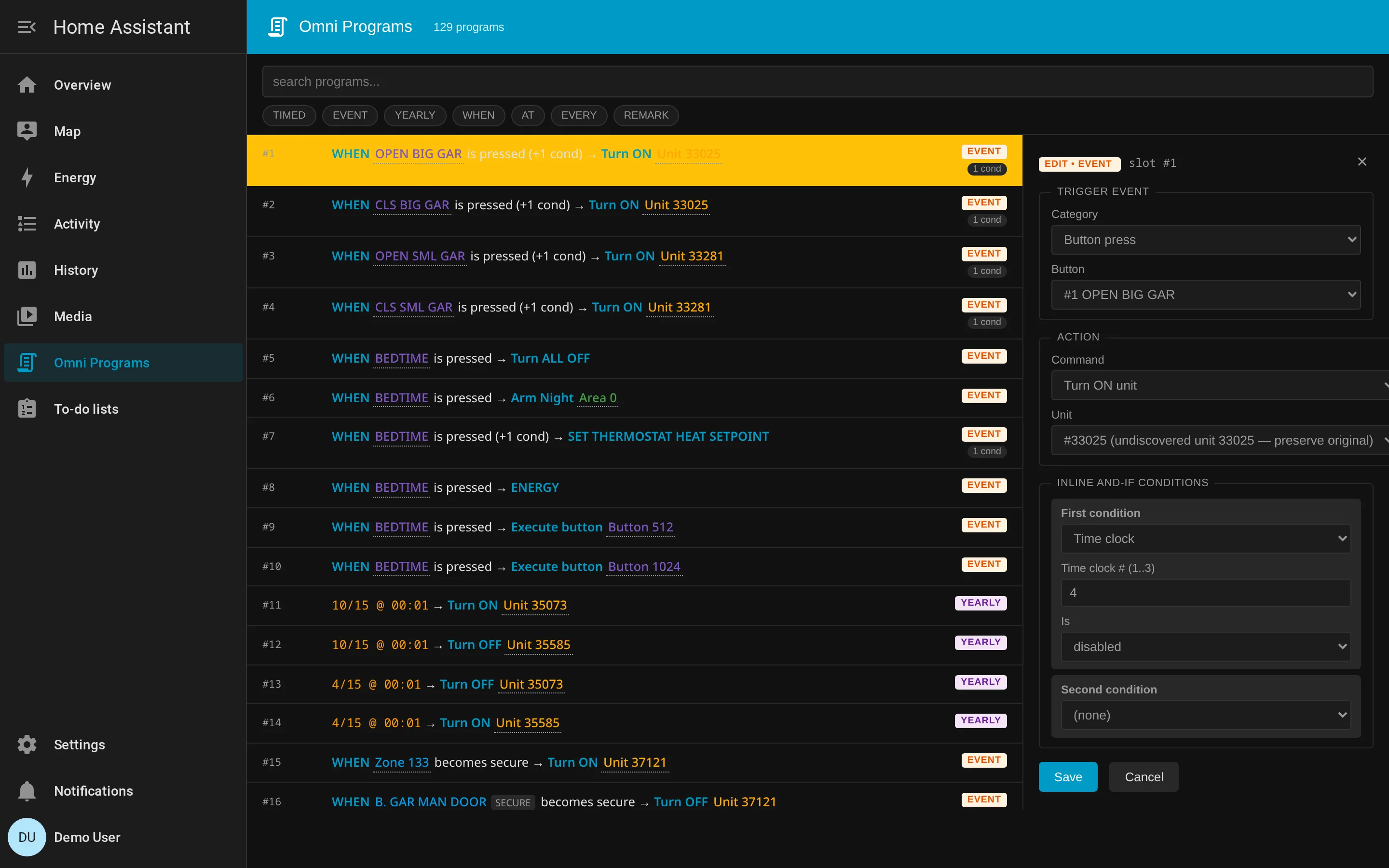
The form adapts to the trigger type:
- TIMED — hour / minute (or sunrise/sunset offset) + days-of-week bitmask.
- EVENT — a category dropdown (Button press / Zone state change / Unit state change / Fixed event), then category-specific sub-fields. For example, Button press shows a button picker; Zone state change shows zone + becomes-state.
- YEARLY — month + day-of-month picker.
- REMARK — read-only in this release (see known limits below).
The action section is a command picker plus a parameter input whose shape follows the command. Turn ON unit shows a unit picker; Arm area Night shows an area picker; Execute button shows a button picker.
The two inline AND-IF slots each get a Family dropdown (Zone / Unit / Time clock / Misc / Area in security mode) and per-family sub-fields.
Hit Save to write the program back to the panel via
DownloadProgram. The integration validates the form server-side
before sending: bad ranges produce a structured error, not a corrupt
program.
Editing a multi-record chain
Section titled “Editing a multi-record chain”Programs with prog_type ≥ 5 (WHEN / AT / EVERY) are
clausal chains — one record per visual line, occupying sequential
slots in the program table. The editor presents the whole chain as
one logical unit even though it’s stored across multiple slots.
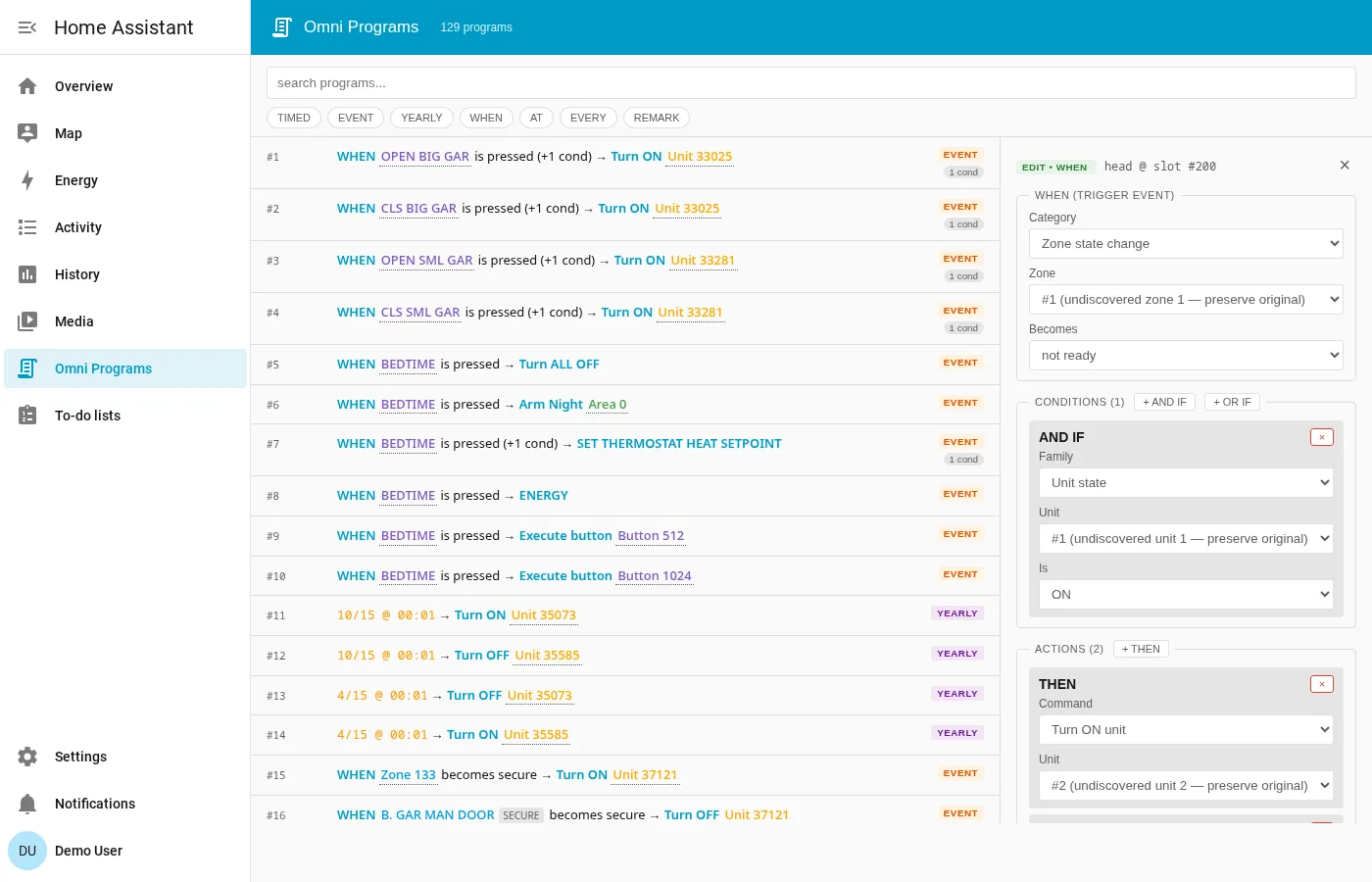
The editor has three sections:
- Trigger header (top) — the
WHEN/AT/EVERYrecord. - Conditions — zero or more
AND IF/OR IFrows. Use the+ AND IFbutton to add a row to the current group, or+ OR IFto start a new alternative group. Each row has an×button to remove it. - Actions — one or more
THENrows. Use+ THENto add another action; chains can fire multiple actions in sequence.
Anti-trample — when you Save, the editor writes only the slots needed for the current chain layout. If you remove a condition or action, the slots it used to occupy are explicitly cleared so no half-stale records linger on the panel.
Structured-AND conditions
Section titled “Structured-AND conditions”Most AND IF rows use the Traditional form (family + instance + operand — “Zone 5 is SECURE”, “Unit 12 is ON”, etc). But the panel also supports Structured AND records that compare a typed field against either a constant or another typed field:
AND IF Thermostat 1 Current temperature > Thermostat 2 Current temperature
The editor renders these as a dedicated form with operator picker and per-arg type pickers:
Arg1 can be any of: Zone, Unit, Thermostat, Area, Time/Date. Each type has its own field selector — for Thermostat that’s Current temperature / Heat setpoint / Cool setpoint / System mode / Humidity / …; for Zone it’s Loop reading / Current state / ….
Operator is one of: ==, !=, <, >, is odd, is even,
is multiple of, in (bitmask), not in (bitmask). The unary
operators (is odd / is even) hide the Arg2 controls entirely.
Arg2 can be:
- Constant (default for new structured rows) — a 0..65535 value. Used for “TEMP > 70”, “Zone.CurrentState == 1”, etc.
- A typed reference — Zone / Unit / Thermostat / Area / TimeDate with its own field selector. This is how you author cross-object comparisons like “Thermostat 1 temp > Thermostat 2 temp” or “Zone 1 reading > Zone 2 reading”.
Switching Arg2 from Constant to a reference type re-populates the form with the appropriate picker; switching back preserves the numeric value.
For the wire format behind all this, see the Program record format reference.
Known limits
Section titled “Known limits”The editor covers the common cases but a few program shapes are deliberately presented read-only — they’re preserved verbatim on Save, you just can’t reshape them in the form:
- REMARK programs — read-only. The
remark_id→ text lookup table layout is documented but the editor doesn’t expose it yet. - Exotic Arg1/Arg2 types on structured-AND —
UserSetting,Auxiliary,Audio,AccessControl,Message,System. These show as a read-only banner with an×remove button. - Non-zero
CompConston structured-AND — rarely used; preserved but not exposed as a form control. - Multi-panel installs — the side panel currently shows the first configured panel. If you have multiple Omni panels, the other panels’ programs aren’t accessible from the side panel yet.
Where the data lives
Section titled “Where the data lives”The side panel is a Lit web component (<omni-panel-programs>)
registered via Home Assistant’s panel_custom integration. It talks
to the integration’s websocket API directly — there’s no separate
state machine, no caching, no debouncing. Each user action becomes
one websocket round-trip:
| Action | Websocket command |
|---|---|
| List view + filters | omni_pca/programs/list |
| Open detail panel | omni_pca/programs/get |
| Fire now | omni_pca/programs/fire |
| Save (compact) | omni_pca/programs/write |
| Save (chain) | omni_pca/programs/write_chain |
| Clone… | omni_pca/programs/clone |
| Clear | omni_pca/programs/clear |
All seven commands validate input server-side and produce structured
errors (no opaque tracebacks) on bad input. The websocket layer’s
own tests cover the contract — see tests/ha_integration/ test_program_websocket.py in the source tree if you want to extend
the API surface.