
Install in Home Assistant
Two install paths and one config-flow walkthrough. By the end of this you’ll have a single HA device named Omni Pro II with one entity per named object on your panel.
Before you start
Section titled “Before you start”You need:
- A Home Assistant install on 2026.1 or newer (the integration uses
modern
EventEntityandAlarmControlPanelStateAPIs that landed in 2024+). - Your panel reachable on TCP — typically port
4369from HA to the panel. If you don’t know whether the network module is on, see the troubleshooting section below. - The 32-character ControllerKey. If you don’t have it, find your panel’s ControllerKey first.
Take a Settings → System → Backups snapshot first if you care about your current HA state. The integration is well-tested but it’s still a custom component you’re adding to a production system.
Path A — HACS (when published)
Section titled “Path A — HACS (when published)”Once the integration is in the HACS default repository (not yet — see Roadmap):
- HACS → Integrations → Explore & download repositories
- Search for HAI/Leviton Omni Panel.
- Click Download, accept the version, then restart HA.
- Continue at Add the integration.
Until HACS publication, use Path B or add the project as a HACS custom repository:
- HACS → Integrations → ⋮ → Custom repositories
- URL:
https://git.supported.systems/warehack.ing/omni-pca, category Integration. - Click Add, then download as in steps 1–3 above.
Path B — manual copy
Section titled “Path B — manual copy”Works on any HA install (Container, Supervised, Core, OS):
cd /path/to/your/homeassistant/config/ # the dir with configuration.yamlmkdir -p custom_componentscd custom_componentsgit clone https://git.supported.systems/warehack.ing/omni-pca tmp-omnicp -r tmp-omni/custom_components/omni_pca .rm -rf tmp-omniThen restart Home Assistant — Settings → System → Restart Home Assistant,
or ha core restart on HA OS.
After restart, Settings → System → Logs should mention loading the custom integration. A WARNING line that reads “We found a custom integration omni_pca which has not been tested by Home Assistant” is expected and harmless — every custom component triggers it.
Add the integration via the UI
Section titled “Add the integration via the UI”-
Settings → Devices & Services → + Add Integration
-
Search for HAI/Leviton Omni Panel. (If you used HACS or restarted recently, it should show up under Brands.)
-
Fill the form:
Field Value Host Panel IP or hostname (e.g. 192.168.1.9)Port 4369(HAI’s reserved port; default)Controller Key 32 hex characters from your panel -
Submit. HA opens a TCP connection to the panel, completes the four-step secure-session handshake, sends
RequestSystemInformation, and creates the entry on the first successful reply. Expect this to take 1–3 seconds.
If you get an error toast, see Common errors below.
Verify it loaded
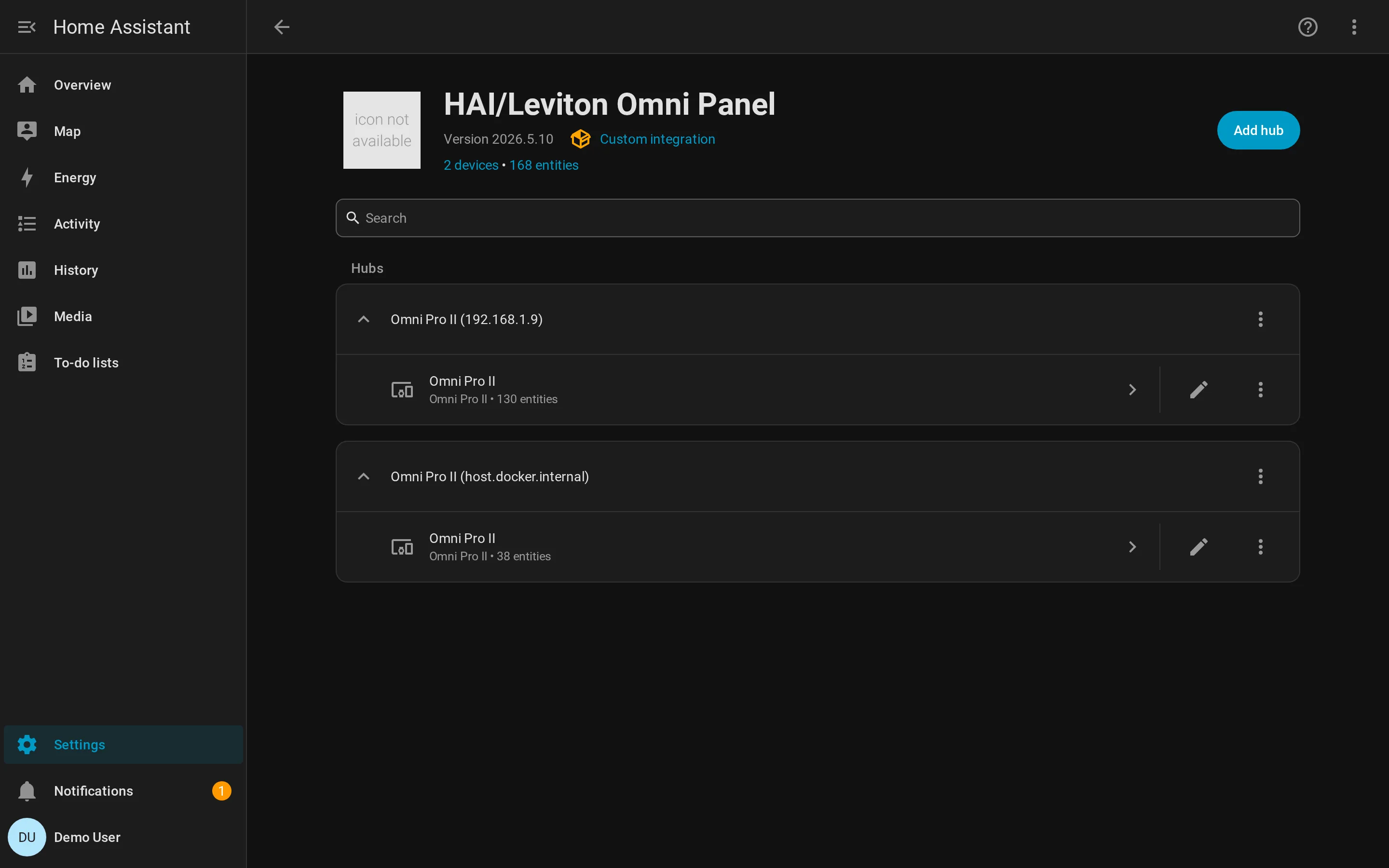
Section titled “Verify it loaded”The integration page (Settings → Devices & Services → HAI/Leviton Omni Panel) should report something like 1 device · 38 entities:
Click into the Omni Pro II device. You should see Controls, Sensors, Diagnostic sections populated with everything the panel knows about:
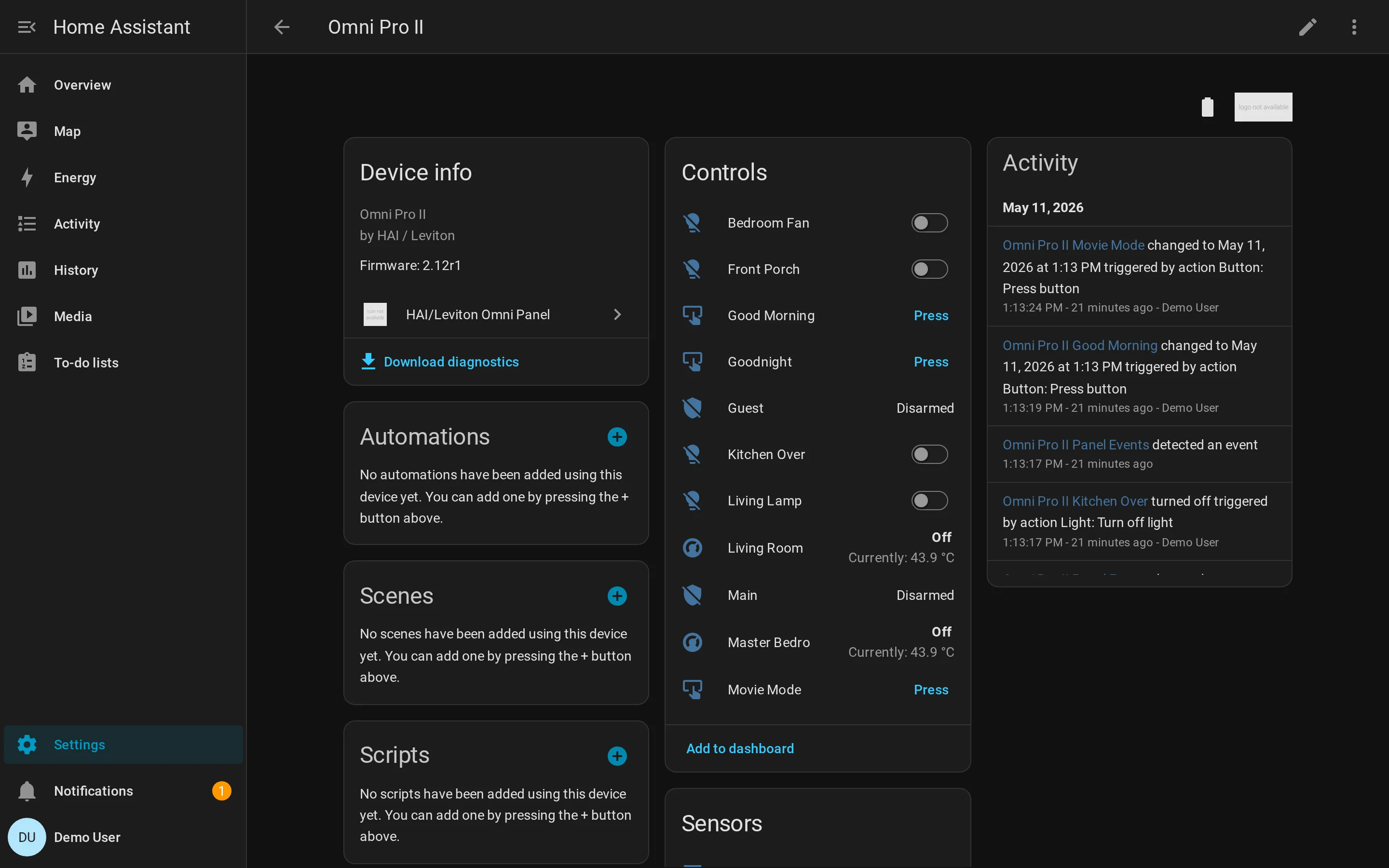
If the controls grid is empty or shows mostly unavailable, jump to the integration loads but no entities appear.
Customise
Section titled “Customise”Optional polish:
- Entity names: HA’s default entity ID is
<platform>.omni_pro_ii_<panel_object_name>(slugified). Click an entity → ⚙️ → rename if you want shorter IDs. Friendly names you can change without touching the entity ID. - Areas: Drag the device into a HA area (Settings → Areas) so every entity inherits it.
- Dashboards: Add the alarm_control_panel card for arm/disarm, the climate card for thermostats, individual light cards or button tiles. Nothing Omni-specific is required.
- Logbook: Push events from the panel show up in Logbook automatically because the integration emits them through the event entity. Useful for “who armed when” history.
Common errors
Section titled “Common errors”| Error toast | What’s wrong | Fix |
|---|---|---|
| Failed to connect | TCP refused or timed out | See no entities. |
| Invalid authentication | ControllerKey wrong or panel rejected the secure handshake | Double-check the 32 hex chars, no spaces, lowercase or uppercase both fine. Re-extract via find ControllerKey. |
| Already configured | You added the same host:port twice | Remove the existing entry first; HA enforces unique-per-host. |
| Unable to install requirement omni-pca==2026.5.10 | HA can’t fetch the wire-protocol library | Until PyPI publish lands, pre-install the wheel into HA’s Python with pip install https://git.supported.systems/warehack.ing/omni-pca/releases/download/v2026.5.10/omni_pca-2026.5.10-py3-none-any.whl, then restart HA. |
The integration loads but no entities appear
Section titled “The integration loads but no entities appear”If the device shows 0 entities or every entity reads unavailable, the integration connected and authenticated but the panel hasn’t given us anything to discover. Three causes, in order of likelihood:
-
The panel has no named objects. The integration only materialises objects the panel reports a name for. Open PC Access → Names and configure names for every zone / unit / area / thermostat / button you want exposed, then reload the integration (Settings → Devices & Services → ⋮ → Reload).
-
The panel’s network module is off but you’re somehow connected anyway (rare; usually you’d get Failed to connect). Verify on a wired console: Setup → Misc → Network → Network Enabled.
-
The panel firmware predates the v2 protocol opcodes the integration uses. We’ve tested against firmware 2.12 and newer; if you’re on something older, file an issue — we can extend the library to fall back to v1 opcodes.
Reauth — what to do when the key changes
Section titled “Reauth — what to do when the key changes”If you regenerate the ControllerKey on the panel, the integration will
start failing with InvalidEncryptionKeyError on the next refresh. HA
catches this as ConfigEntryAuthFailed and surfaces a Reauthenticate
prompt on the integration card. Click it, paste the new key, submit.
No restart needed.
Where next
Section titled “Where next”- Trigger an HA automation on alarm activation
- Bypass a zone
- Show a message on the panel display
- HA entities reference — what each entity type exposes
- HA services reference — the seven services the integration registers
Known gaps
Section titled “Known gaps”-
The integration is not yet published in HACS default. Use the custom-repository workflow above (or path B) until then.
-
The library
omni-pcais not yet on PyPI. HA’smanifest.jsonrequiresomni-pca==2026.5.10; that resolves once publish lands. Until then, manually pre-install the wheel into HA’s Python:Terminal window pip install https://git.supported.systems/warehack.ing/omni-pca/releases/download/v2026.5.10/omni_pca-2026.5.10-py3-none-any.whlHA OS users: drop into the SSH/Web add-on shell or use the Advanced SSH & Web Terminal add-on first.
-
Live-panel validation against a real Omni Pro II is in progress. Mock-panel coverage is comprehensive (351 tests), but a real-world bug-bash hasn’t happened yet. Report anything weird as a Gitea issue with a diagnostics download.