
Spin up the dev stack
Two Docker containers, one Makefile target, and you’re looking at a real Home Assistant UI driving a faithful Omni Pro II emulator over TCP. Useful for clicking through the integration before you point it at your real panel, for screenshots, and for catching protocol regressions when you change the library.
What you need
Section titled “What you need”- Docker +
docker compose(compose v2). - ~500 MB of free disk for the HA + builder images.
- Port 8123 free on localhost.
- The
omni-pcasource repo cloned locally (git clone https://git.supported.systems/warehack.ing/omni-pca).
Step 1 — boot the stack
Section titled “Step 1 — boot the stack”cd omni-pca/dev/make dev-upTwo containers come up:
omni-pca-dev-ha— Home Assistant2026.5, mounting../custom_components/omni_pcaread-only so HA loads the integration from your working tree.dev-mock-panel-1— a long-running mock panel on port 14369 with a populated state: 5 zones, 4 units, 2 areas, 2 thermostats, 3 buttons, two valid user codes (1234and5678).
make dev-logs # tail HA + mock logsmake dev-down # stop everythingmake dev-reset # wipe HA state and start freshWait ~30 seconds for HA to finish booting. You’ll see the usual
http.log running line in the logs when it’s ready.
Step 2 — onboard HA
Section titled “Step 2 — onboard HA”Open http://localhost:8123/ in a browser. HA’s first-run wizard takes ~60 seconds:
- Set up a user account — anything works for local testing.
- Pick a location (or skip it).
- The wizard’s “We found compatible devices” step will already list
HAI/Leviton Omni Panel — that’s our
manifest.jsongetting picked up automatically. You can finish the wizard either way; we’ll add the integration manually next.
Step 3 — add the integration
Section titled “Step 3 — add the integration”Settings → Devices & Services → Add Integration, search for HAI/Leviton Omni Panel, then fill in:
| Field | Value |
|---|---|
| Host | host.docker.internal |
| Port | 14369 |
| Controller Key | 000102030405060708090a0b0c0d0e0f |
Submit. Within 5 seconds you should see one device — Omni Pro II — with ~38 entities discovered:
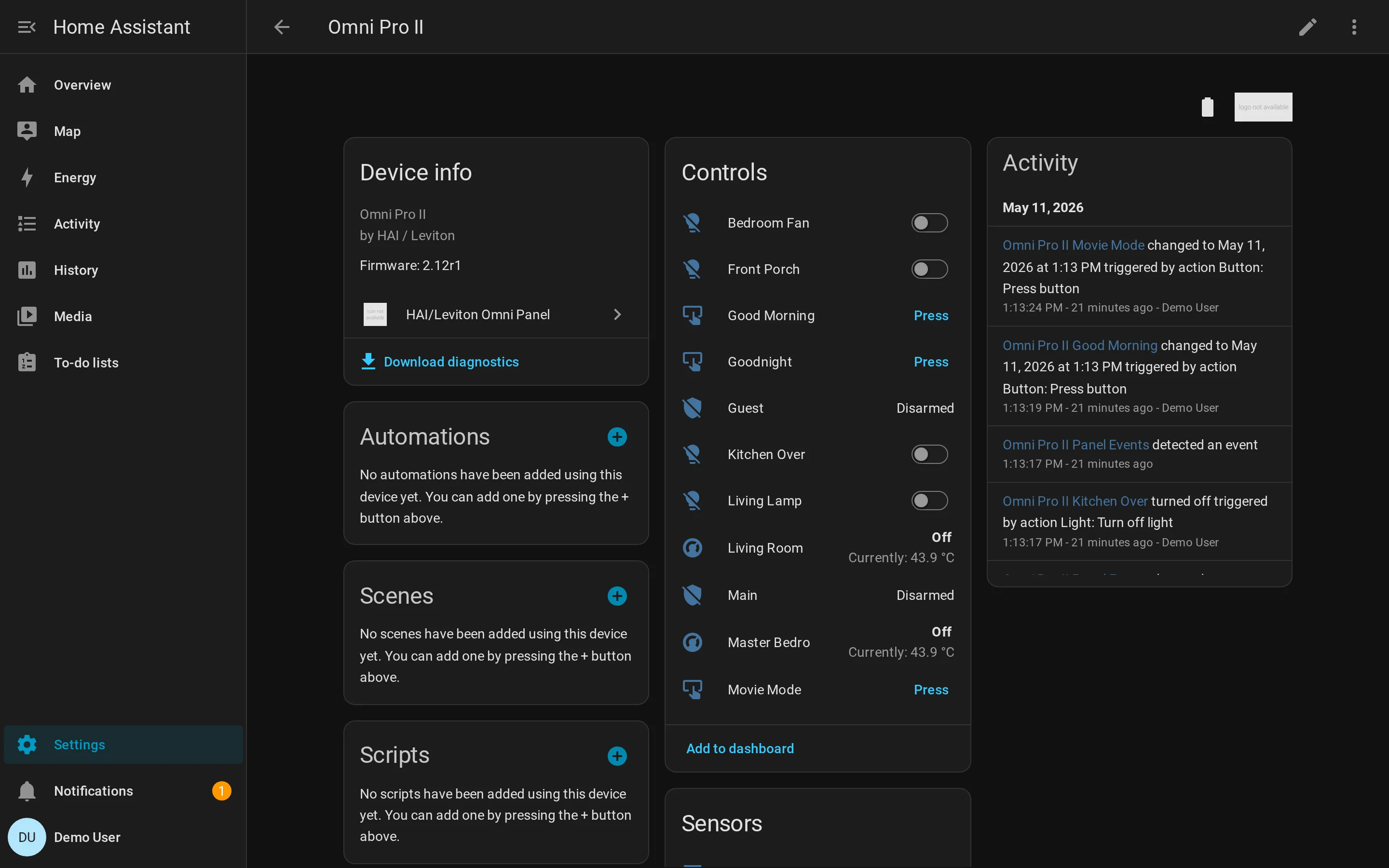
Step 4 — exercise it
Section titled “Step 4 — exercise it”Try a few things from the HA UI:
- Toggle a light. Living Lamp’s switch flips the mock’s unit-state
byte; the entity updates instantly via the synthesized
UnitStateChangedpush event. - Arm an area. Click Main → Arm Away, enter
1234. The area transitions toarmed_awayand the mock pushesArmingChanged. - Use the wrong code. Same flow with
9999— HA toasts a service error and the area stays disarmed. The mock validated the code server-side and respondedNak. - Trigger a panel button. Press Good Morning — mock acks the
EXECUTE_BUTTONcommand (no state change to observe, but check the logs). - Open Developer Tools → States. Filter for
omni_pro_iiand watch attributes mutate as you interact with entities elsewhere in the UI.
Step 5 — change something and reload
Section titled “Step 5 — change something and reload”Edit custom_components/omni_pca/binary_sensor.py (or anywhere in the
integration), then:
docker compose restart homeassistantHA picks up the change in ~10 seconds. The mounted volume is :ro so
you can’t accidentally write back from the container.
What just happened
Section titled “What just happened”The HA container is the real upstream Home Assistant image. The mock
container is the same MockPanel class our integration tests
use, exposed via a tiny script (dev/run_mock_panel.py). HA opens an
encrypted session to the mock over real TCP — full handshake,
per-block whitening,
real AES, real CRC. If the protocol agrees end-to-end, every entity
materialises; if anything’s off (a missing opcode handler, a wrong byte
offset), it shows up as a missing entity or an unavailable state.
This is the same loop the project itself uses — every code change runs against the mock first. Bringing your own real panel online is the next tutorial.
Where next
Section titled “Where next”- Tutorial: write your first omni_pca script — drop into Python and drive the mock from your own code.
- How-to: trigger an HA automation on alarm activation —
use the
evententity for real-time reactions. - Reference: HA entities — what each entity exposes.